/admin/team is the public secretariat roster at /team.
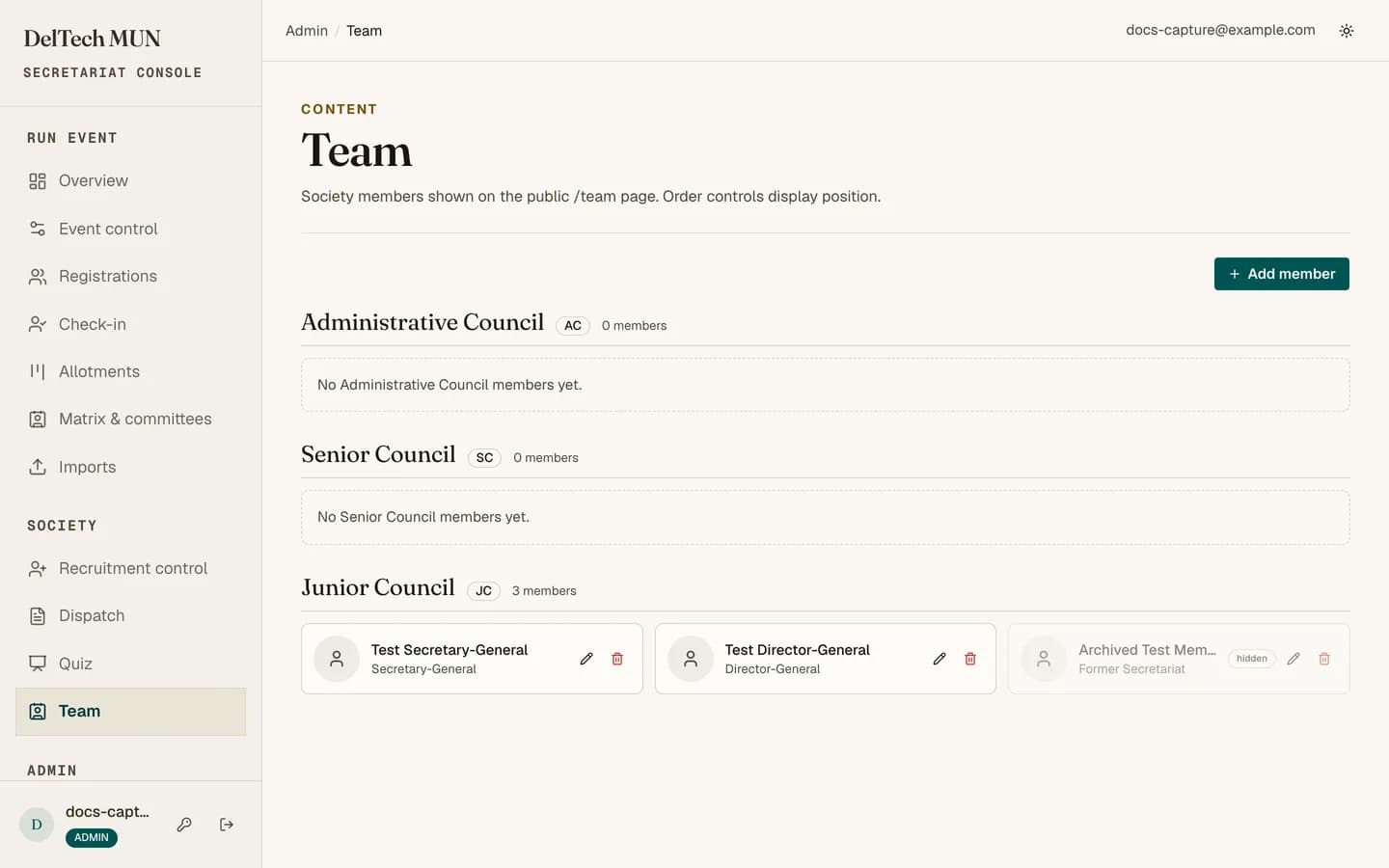
Adding someone
| Field | Notes |
|---|---|
| Name | As it should appear publicly. |
| Designation | Their title. |
| Level | Administrative, Senior or Junior Council. The public page groups by this. |
| Order | Position within their level. |
| Photo | Uploaded and cropped, or an external URL. |
| Instagram / LinkedIn | Optional links shown on their card. |
| Active | Inactive members disappear from the public page without being deleted. |
Photos
Upload a JPEG, PNG or WebP up to 750 KB. You crop it in the browser before it uploads, so everyone's photo ends up the same shape and the public page looks deliberate rather than assembled.
If the upload is rejected, the file is too large or the wrong format. Export a smaller JPEG rather than trying again with the same file.
Tip
Get everyone's photo taken in one session against the same background. It is the single biggest difference between a team page that looks organised and one that does not.
Ordering
The public page groups by level and then sorts by the order number within each group. Leave gaps between numbers, so inserting someone later does not mean renumbering everybody.
Removing someone
Set them inactive. Deleting is admin-only and pointless here: inactive already removes them from the public page and keeps the record.
Checking your work
Look at /team after every change. Photos are the thing most likely to look wrong,
particularly if somebody used an external URL that later stops resolving.